Outlook Calendar, connected to your back office.
For teams on Microsoft 365, Dika Ops writes operational events to Outlook and reads meetings back. Planned work and real availability stay on one timeline.
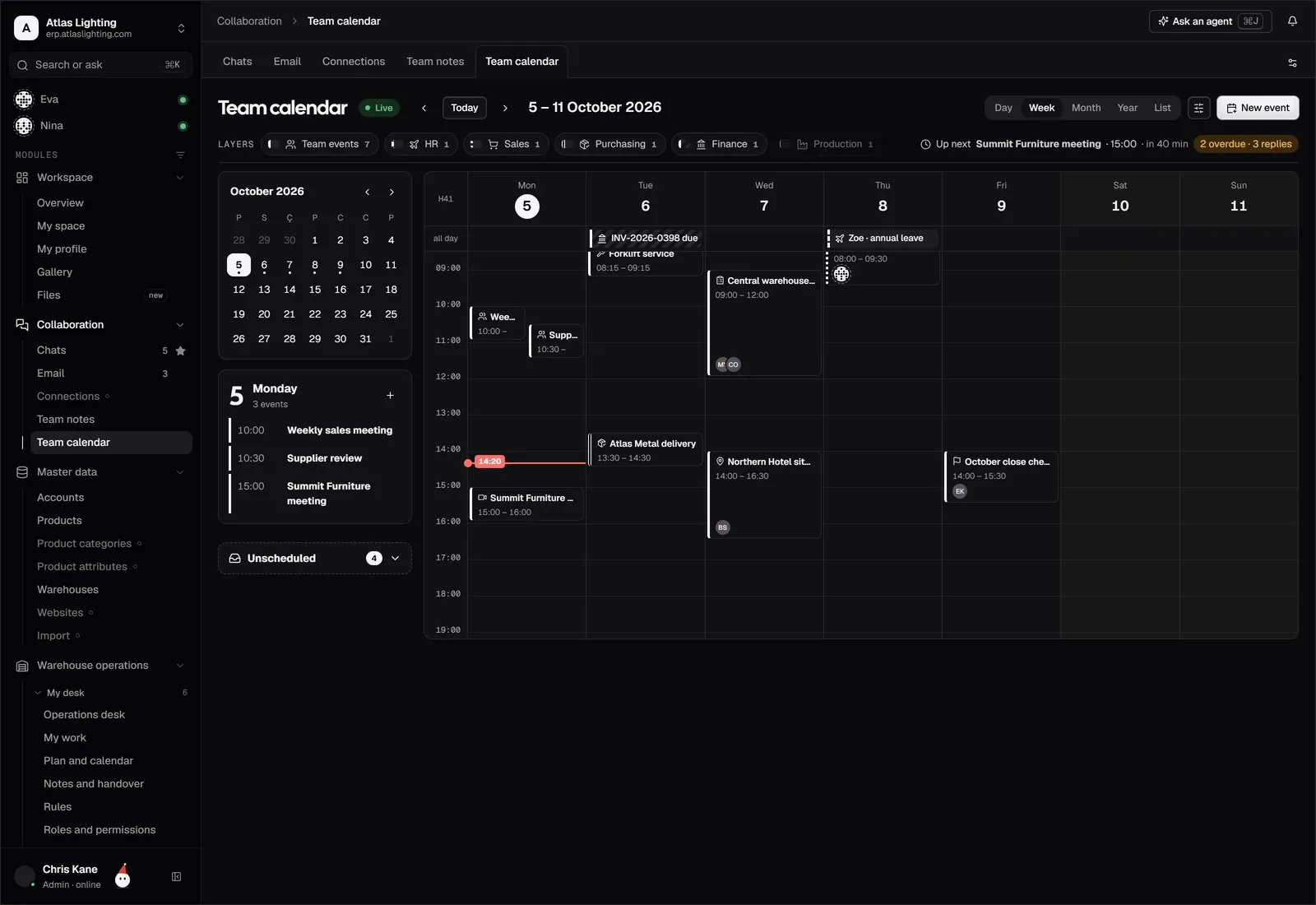
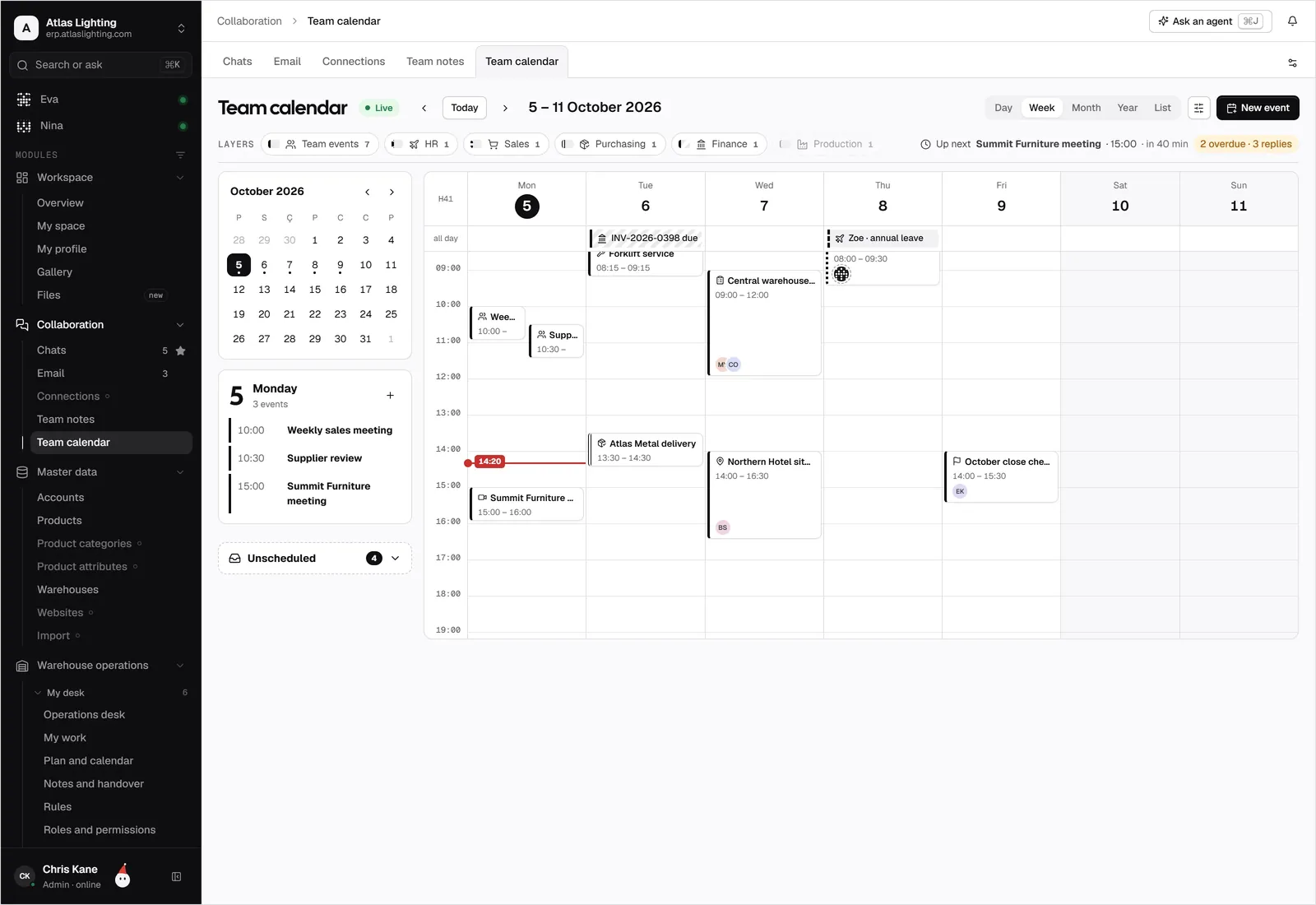
Outlook Calendar and Dika Ops, kept in step.
Bring deliveries, visits and leave into the Outlook calendars your office lives in.
What teams use it for.
Office staff keep working in Outlook while field visits are written to the same calendar.
A customer meeting in Outlook links back to the account, so the notes and open quotes are one click away.
Managers see leave and planned jobs side by side before they assign work.
Connected in four steps.
- 01
Sign in with your Microsoft 365 account and approve calendar access; your administrator may need to consent first.
- 02
Choose the calendars to read and the one that receives Dika Ops events.
- 03
Select the event types to share.
- 04
Create a test event in each direction and check it arrives.
Outlook Calendar, answered.
Do I need Microsoft 365?
You need an Outlook calendar that can be connected to a Microsoft account, usually through Microsoft 365. Your administrator controls whether outside apps can connect.
Is this an official Microsoft integration?
No. It is an early-access connection built on access you grant, with no Microsoft partnership or certification.
Can I connect a shared mailbox calendar?
If your account has permission to read and write it, you can choose it as a connected calendar.
Can I send events only one way?
Yes. You can send events out, read events in, or sync both ways for each event type.
Outlook Calendar is a trademark of its owner. Dika Ops is not affiliated with or endorsed by its owner.
Run the whole company from one place.
Dika Ops is in closed beta. We onboard a few companies at a time and set everything up with you.